🖨️ Print smart, print fast, print flawless — the Zebra way!
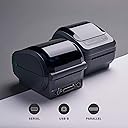
The Zebra GK420d is a compact, direct thermal monochrome desktop printer offering a 4-inch print width and 203 dpi resolution. With versatile USB, serial, and parallel connectivity, it supports a wide range of label sizes and types without the need for ribbons. Engineered for durability and speed (up to 5 inches per second), it’s ideal for professional environments requiring reliable, high-quality address, shipping, barcode, and name tag labels. Energy Star approved and Zebra-certified, it’s a cost-effective, low-maintenance solution designed to streamline your labeling workflow.


| ASIN | B00EUN90SG |
| Additional Printer Functions | Print Only |
| B&W Pages per Minute | 10 ppm |
| Best Sellers Rank | #62,597 in Office Products ( See Top 100 in Office Products ) #156 in Desktop Label Printers |
| Brand | Zebra Technologies |
| Built-In Media | Direct Thermal Media |
| Color | Black |
| Color Depth | 1 bits per pixel |
| Color Pages per Minute | 10 ppm |
| Compatible Devices | PC |
| Connectivity Technology | USB |
| Control Method | Remote |
| Controller Type | USB |
| Customer Reviews | 4.2 out of 5 stars 406 Reviews |
| Dual-sided printing | No |
| Duplex | Manual |
| Global Trade Identification Number | 00777786391331 |
| Hardware Interface | USB |
| Initial Page Print Time | 6 Seconds |
| Ink Color | black |
| Item Dimensions D x W x H | 9.13"D x 12.95"W x 8.07"H |
| Item Type Name | Laser Printer |
| Item Weight | 3 Pounds |
| Manufacturer | ZEBRA |
| Maximum Copy Resolution Black and White | 203 dpi |
| Maximum Copy Speed Black and White | 5 ppm |
| Maximum Media Size | 3 x 5 inch |
| Maximum Print Resolution Black and White | 203 DPI |
| Maximum Sheet Capacity | 100 |
| Model Name | gk420d |
| Model Number | GK420d |
| Model Series | GK420 |
| Number of Drivers | 1 |
| Number of Trays | 1 |
| Other Special Features of the Product | The GK420d comes standard with EPL and ZPL programming languages, and dual connectivity (USB, serial) for easy integration into existing systems. |
| Paper Size | 2x1 |
| Power Consumption | 70 Watts |
| Print media | Labels |
| Printer Connectivity Type | USB |
| Printer Output Type | Monochrome |
| Printer Type | Thermal |
| Printing Technology | Thermal |
| Processor Count | 1 |
| Resolution | 203 x 203 DPI |
| Scanner Type | Sheetfed |
| Series Number | 420 |
| Specific Uses For Product | address labels, shipping labels, mailing labels, file folder labels, barcode labels, binder labels, name tags |
| Total USB 2.0 Ports | 1 |
| Total Usb Ports | 1 |
| UPC | 778889974193 777786391331 |
| Unit Count | 1.0 Count |
| Warranty Description | 90 days limited warranty |
| Warranty Type | 90 days limited warranty |
| Wattage | 70 watts |
K**S
Be sure to calibrate if using with a Mac!
As a Mac user, I was worried about the installation process after seeing some negative reviews here. After printing a couple of test pages, it was only printing on the first 2" of a 4x6" label. Luckily, I found another review that mentioned calibrating the printer to use a specific label size, and figured out a solution! If you're using this printer with a Mac, follow these steps: 1. Plug in printer 2. In System Settings > Printers & Scanners, click button: Add Printer, Scanner, or Fax. 3. Select the Zebra printer 4. Click the Choose a Driver dropdown and choose Select Software. From the list, select the ZPL driver. Then click Add. 5. Here's the magic: On the printer, press and hold the button (to the right of the status indicator) until the indicator flashes a "double-blink." It blinks once, keep holding, then it'll blink twice rapidly, let go. The printer will slowly feed out a label, calibrating the size. 6. Done! Enjoy an excellent printer! Hope that helps someone else. The CUPS interface can be confusing for anyone who isn't very tech-inclined so installing with the above steps should save you that trouble. So far print quality is pretty good. Thermal printers aren't meant to print photo-quality or even super-dark blacks. It's much faster and quieter than the old Zebra it's replacing, and looks 1000x better in my workspace. I snagged it on Amazon from the Woot seller for just $34, worried there must be something wrong with the model, but it's brand new and works great. Strangely, it included two different power cables, both European and not for US plugs, so I have to using my own computer cable from the transformer to the wall. But for the price I can hardly complain.
F**L
Nice Printer
Prior to purchasing this I had to print my labels on a laser printer, cut them to size, and affix with tape. So this Zebra printer really saves a lot of time and certainly is more professional. For some reason I had problems getting the label to print correctly, but I phoned support and got immediate help. The tech walked me through a couple of changes in my set-up and everything has been fine since. Before buying it I read some reviewers' comments on poor print quality. Although not laser quality, I've had no issues with the print quality being substandard. There are some adjustments, or choices, to make regarding print quality when setting up the printer for the first time, so perhaps it has to do with the choices there. I wish I'd bought this a long time ago, but I'm glad I have it now.
L**Y
Perfect printer!
I was nervous buying a used printer but am so glad I did! Setup was super easy and it works great!
A**C
Would NOT recommend for Mac users.
Pros: Feels sturdy, roll is encased in printer, prints very quickly. Cons: I couldn't get it to work properly. I have a mac, and the driver software included is windows based. Zebra does not have ANY download options for Mac drivers. Which is OK because macs have printer drivers preinstalled - including ones for this printer! Unfortunately these drivers only allow for the most basic of options (such as setting the paper size). If you want to change the print speed or type you have to use CUPS. Which is okay too - unless you have literally ANY issues. Such as the printer only printing on the top 1" of labels no matter what the paper size or line weight is set for. This requires a factory reset / recalibration ...which you do not have access to unless you buy a third party software. Either a lump sum of 1/3 the printer cost, or a tidy sum monthly. YUP if you have ANY issues and are using an apple device you will have to pay to resolve them with a software provided by a different company. You do not have access to those settings automatically. Windows users however do, with the free downloads provided by Zebra. So basically - if you plug this in, and it works, you are golden. For me it did not. It only printed on 1" of the labels, no matter what changes I made. I spent two hours troubleshooting, reinstalling, and wasting 50+ labels before giving up because the only solutions I didn't try required paying for additional software. Ended up buying another Munbyn printer (returned the first one due to problems) it isn't as sturdy and maybe it won't last, but setup took 2 minutes instead of 2 hours...and it actually works!
B**N
Great printer works as designed
This is a good printer, and came in good condition. Sometimes it is difficult to get it to align correctly with the labels, but other than that it is fine. Note: for this model you need to tear off the labels. There is no cutter.
S**R
Excellent For Barcodes and 4x6 labels!
I LOVE this printer for shipping labels! I bought this after replacing my Dymo 4xl for the fifth time and plan to buy another to run for barcode labels At first It seemed like a bit of a learning curve from the Dymo but it really isn't. I have never ever had an issue with this printer, it is top quality and worth every penny. You may be tempted to buy "the other brand" due to it being cheaper, you'll be saving yourself a lot of headache and weekly issues by spending a little more. The quality is uncomparable- this is a solid, well constructed machine built to last a long time My only complaint would be the amount of labels wasted when switching between label sizes...which is why i'm buying a second machine
A**R
So far so good. Works with ShipStation, UPS and USPS
So far so good. Just received the printer today. I'm Using Windows 10 and ShipStation. Will work with bother UPS and USPS although the top boarders are just slightly cut off, but only by a few mm, it will not affect shipping. ShipStation recommends you download their driver for any zebra printer. Since my windows computer is so slow (was purchased strictly for ShipStation) their recommended driver wouldn't download. You pretty much plug and play with this printer, just set the printing preferences and you're good to go. I went ahead and installed the drivers on the disc that came with the printer since my computer recognized this printer as a zp450 after plugging it in and started printing labels. Installation was straight forward, although I doubt it was needed at all since this worked at first without installing the drivers! I tried connecting to my Mac and followed ShipStations installation instructions but had no luck. You're best off getting a Dymo Printer just for Macs. But since I started a new clothing/accessories brand and will need to print labels to ship via UPS and USPS as well as UPC labels for my products, I had to purchase a PC designated for the thermal printers.
D**D
Easy install
Easy to install and use.
Trustpilot
3 weeks ago
2 weeks ago